Digital loyalty cards in Apple Wallet and Google Wallet: a guide for cafés and restaurants
Paper stamp cards get lost; loyalty apps rarely get downloaded. A digital loyalty card that lives in your guest’s Apple Wallet or Google Wallet sits in between: always on their phone, scanned at the counter, with nothing to install.
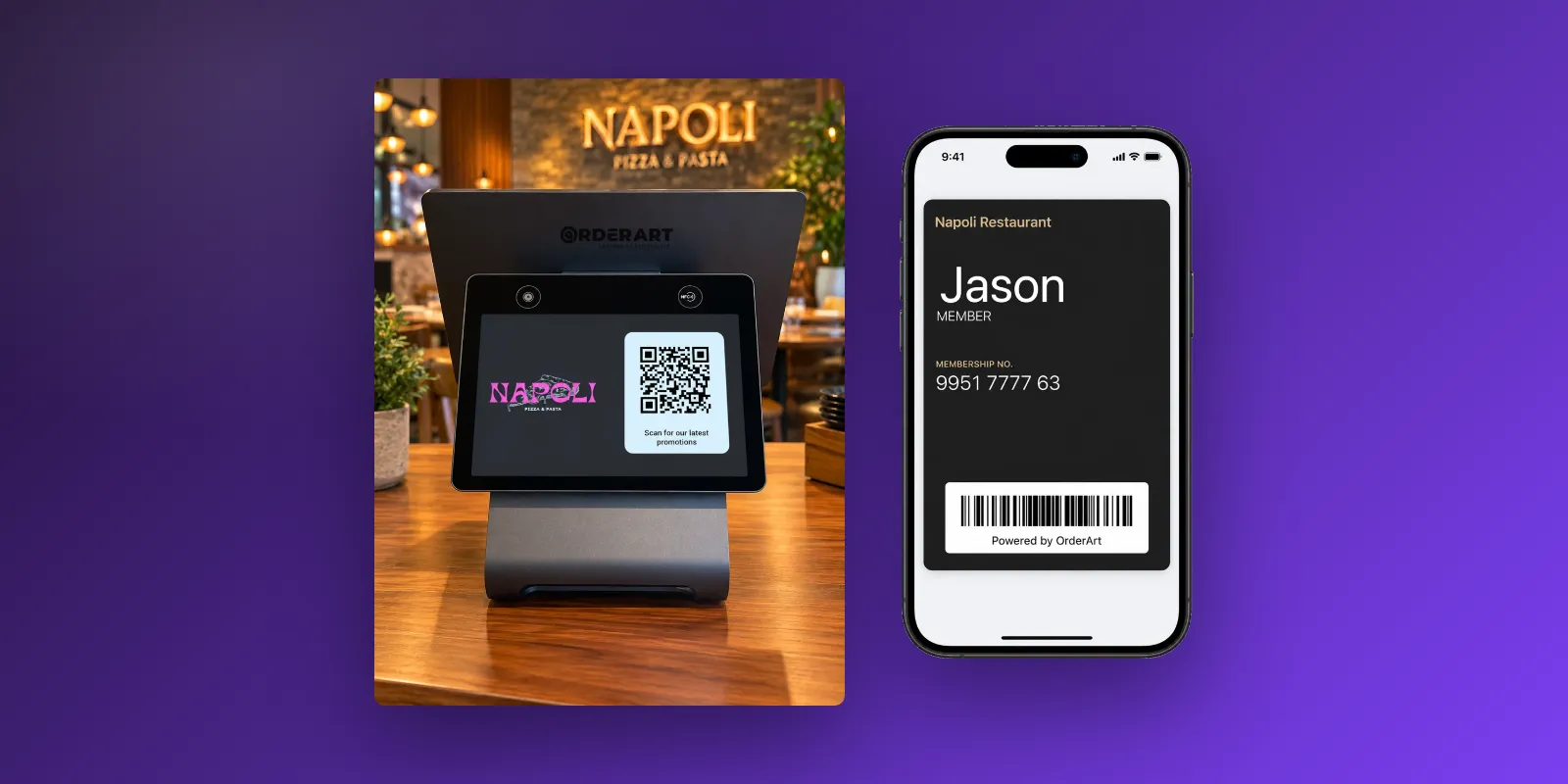
In short: a digital loyalty card is a membership card with a barcode or QR code that your guest saves to Apple Wallet or Google Wallet. Staff scan it at the POS to add points or stamps, and rewards are applied on the bill. It’s cheaper than a custom app and harder to lose than a paper card.
What is a digital loyalty card?
A digital loyalty card replaces the paper stamp card with a pass on the guest’s phone. Guests join in seconds (often from a link, a QR code or a text message), save the card to Apple Wallet or Google Wallet, and show it when they pay. Your POS reads the code, recognises the member and records their visit.
Paper cards vs apps vs wallet cards
| Paper stamp card | Loyalty app | Digital wallet card | |
|---|---|---|---|
| Guest effort | Carry the card | Download, sign up, log in | Tap “Add to Wallet” |
| Lost or forgotten | Often | Rarely, if installed | Rarely: it’s in the phone’s wallet |
| Your data | None | Yes | Yes |
| Fraud | Easy to fake stamps | Low | Low |
| Cost to run | Printing | App development or subscription | Usually included in the POS or loyalty platform |
Points or “buy 9, get the 10th free”?
Points (spend $1, earn 1 point) suit restaurants with varied menus and bigger bills. Product loyalty (“buy 9 coffees, get the 10th free”) suits cafés and takeaways where guests buy the same thing often: it’s easy to understand and feels close to the reward. Many venues run both: points on everything, plus a product card on coffee or pizza.
How to add a loyalty card to Apple Wallet or Google Wallet
- The guest joins from your link, QR code or a text message.
- They tap Add to Apple Wallet on an iPhone, or Add to Google Wallet on Android.
- The card appears in their wallet with their barcode, ready to scan at the counter.
Running loyalty from the POS
- Scan the card to see the member and their progress straight away
- Earn and redeem on the bill, without a separate device
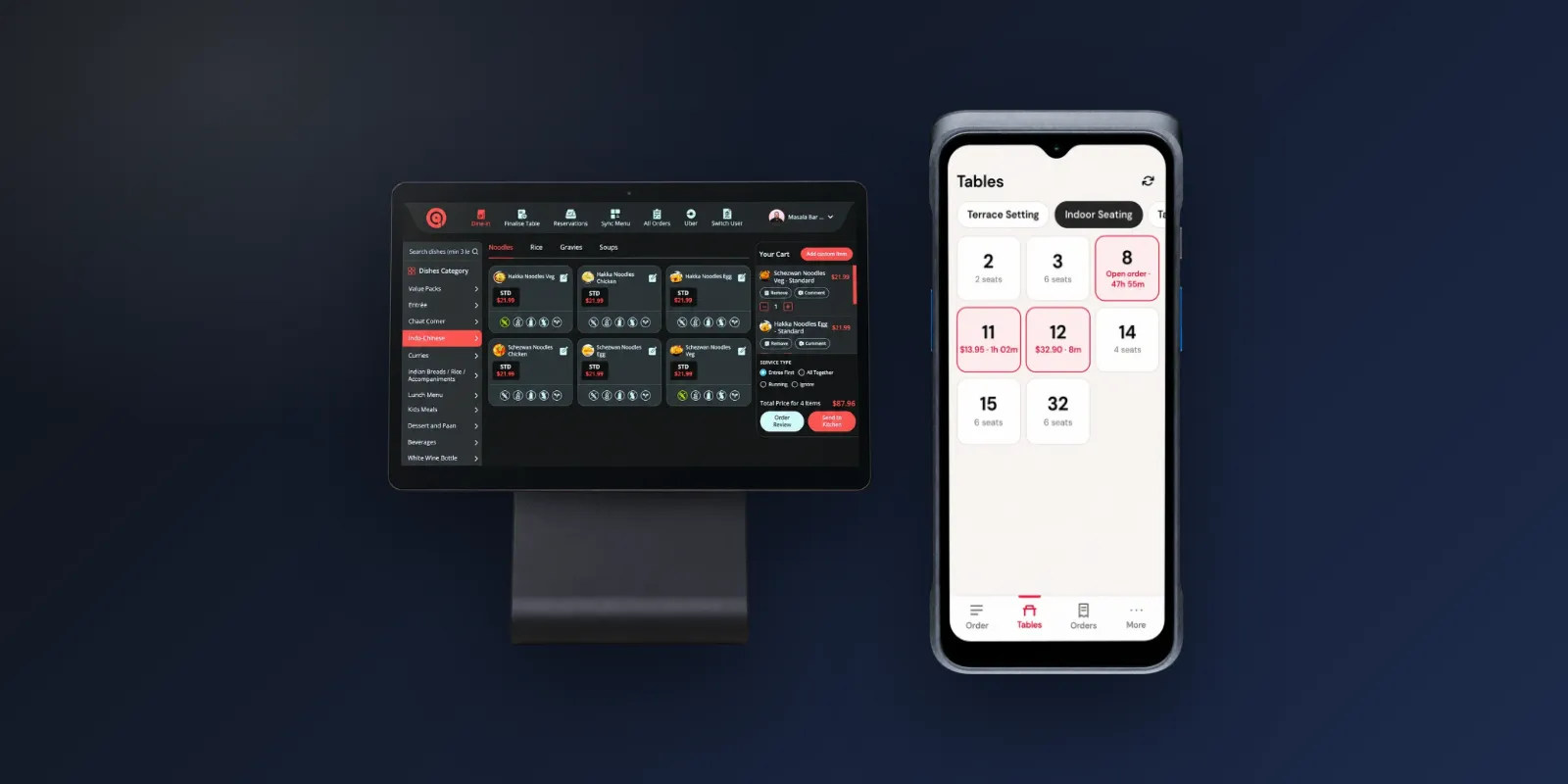
- Show progress on the customer-facing screen
- Apply free items automatically when they’re earned
- Use the member list for SMS and email campaigns
How OrderArt does it
OrderArt’s digital rewards card is stored in Apple Wallet or Google Wallet. Staff scan it on the countertop or the handheld POS to see the guest’s membership, then earn or redeem on the bill. With product loyalty you can create your own “Buy X, get 1 free” cards for a product, category or menu group; the POS counts every purchase, shows progress on the customer screen and applies the free item automatically. No app to download, no plastic cards and no phone numbers read out at the counter.
Frequently asked questions
Do customers need an app for a digital loyalty card?
No. Wallet cards live in Apple Wallet or Google Wallet, which are already on the phone.
Can I use a digital loyalty card on Android?
Yes. Android users add the card to Google Wallet; iPhone users add it to Apple Wallet.
What’s the best loyalty program for a café?
A simple product card (for example, buy 9 coffees, get the 10th free) that staff apply in one scan. Keep the reward close and easy to understand.
Can I market to my loyalty members?
Yes, with their consent. Members’ details can be used for SMS and email campaigns, such as a birthday offer or a “we miss you” message.